| MENUS, TOOLBARS, AND HOT KEYS |
| File menu |
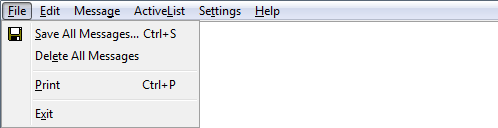
| (CTRL+S) | Save All Messages Saves all messages to a text file. |
| Delete All Messages Deletes all messages in Message History and Message Box. | |
| (CTRL+P) | Print Sends the selected text or message to the Print queue of the selected printer. |
| Exit Exits the LanToucher Messenger application. |
| Edit menu |
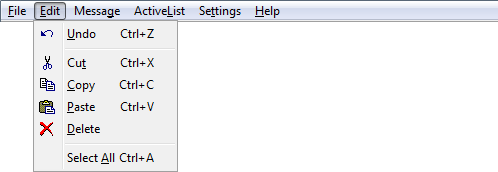
| (CTRL+Z) | Undo Windows standard Undo function |
| (CTRL+X) | Cut Windows standard Cut function |
| (CTRL+C) | Copy Windows standard Copy function |
| (CTRL+V) | Paste Windows standard Paste function |
| Delete Windows standard Delete function | |
| (CTRL+A) | Select All Windows standard Select All function |
| Message menu |
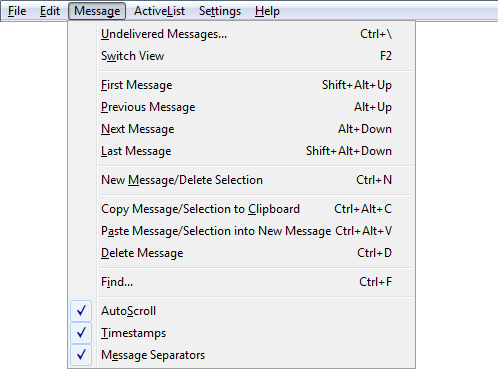
| (CTRL+\) | Undelivered Messages Opens the Undelivered Messages dialog. |
| (F2) | Switch View Switches between the Message History and the Message Box views. |
| (SHIFT+ALT+UP/SHIFT+ALT+LEFT) | First Message Displays first message. |
| (ALT+UP/ALT+LEFT) | Previous Message Displays previous message. |
| (ALT+DOWN/ALT+RIGHT) | Next Message Displays next message. |
| (SHIFT+ALT+DOWN/SHIFT+ALT+RIGHT) | Last Message Displays last (most recent) message. |
| (CTRL+N) | New Message/Delete Selection Clears the New Message field. If there is selected text, it just deletes the selection. |
| (CTRL+ALT+C) | Copy Message/Selection to Clipboard Copies the current message or selected text to Windows Clipboard. |
| (CTRL+ALT+V) | Paste Message/Selection into New Message Pastes the current message or selected text into the New Message field at the current cursor position. |
| (CTRL+D) | Delete Message Permanently deletes the current message from Message History and Message Box. |
| (CTRL+F) | Find Opens the Search dialog. |
| AutoScroll Enables or disables AutoScroll. When AutoScroll is enabled, LanToucher Messenger will always show you the last (sent or received) message when it is added to the message base. As a result, the current message number will reset. Disable AutoScroll, if you wish to scroll the messages manually. | |
| Timestamps Enables or disables timestamps in message headers. When this is enabled, all messages will have the time and date of sending/arrival at the beginning. | |
| Message Separators (Message History view) Enables or disables message separators between adjacent messages. Enable this option for better readability of messages in the Message History view. |
| ActiveList menu |
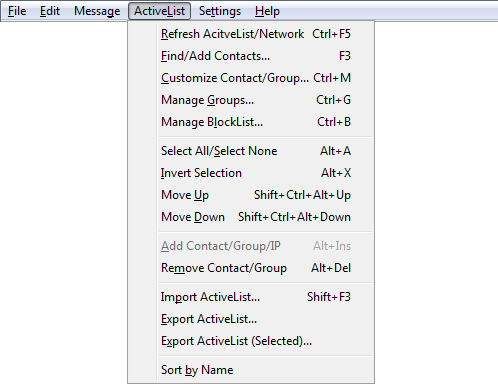
| (CTRL+F5) | Refresh ActiveList/Network Refreshes the presence status of your ActiveList contacts. |
| (F3) | Find/Add Contacts Opens the Contact Browser dialog. |
| (CTRL+M) | Customize Contact/Group Opens the Settings dialog for the selected contact(s)/group(s). |
| (CTRL+G) | Manage Groups Opens the Groups dialog. |
| (CTRL+B) | Manage BlockList Opens the BlockList dialog. |
| (ALT+A) | Select All/Select None Selects all ActiveList items if none or some items have been selected. Clears selection if all ActiveList items have been selected. |
| (ALT+X) | Invert Selection Selects all unselected items in ActiveList and vice versa. |
| (SHIFT+CTRL+ALT+UP) | Move Up Permanently moves the selected items one position up the list. |
| (SHIFT+CTRL+ALT+DOWN) | Move Down Permanently moves the selected items one position down the list. |
| (ALT+INS) | Add Contact/Group/IP Adds the contact/group you specified in the ActiveList Address Box to ActiveList. A group name must have the plus sign at the beginning (for example, +SALES). You can use IP addresses as well. LanToucher Messenger will automatically search those IP addresses for available messaging aliases, if any. |
| (ALT+DEL) | Remove Contact/Group Permanently removes the selected item(s) from ActiveList. |
| (SHIFT+F3) | Import ActiveList Imports (adds) contacts/groups to ActiveList from a text file. |
| Export ActiveList Exports (saves) ActiveList contacts/groups to a text file. Note that group elements (members) are not saved. | |
| Export ActiveList (Selected) Exports (saves) currently selected ActiveList contacts/groups to a text file. Note that group elements (members) are not saved. | |
| Sort by Name Sorts the items of ActiveList alphabetically. |
| Settings menu |
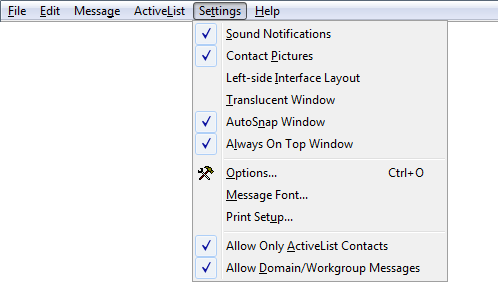
| Sound Notifications Enables or disables application-wide sound notifications on events. | |
| Contact Pictures Enables or disables Image panel above ActiveList. | |
| Left-side Interface Layout Switches between the left-side and the right-side user interface layouts. | |
| Translucent Window Enables or disables the translucency effect for the Main window. This effect is unavailable under legacy operating systems such as Windows 95, 98, ME, or NT4. | |
| AutoSnap Window Enables or disables the AutoSnap feature. When enabled, AutoSnap lets you "stick" the Main window to the edges of Desktop. | |
| Always On Top Window Enables or disables the Always On Top mode. When this is on, LanToucher Messenger Main window will float over all other windows. | |
| (CTRL+O) | Options Opens the Options dialog. |
| Message Font Opens the font selection dialog, where you can select the font you wish to use in the messages. | |
| Print Setup Opens the standard Print Setup dialog. In the Print Setup dialog, you can select the printer, page orientation, and paper size. | |
| Allow Only ActiveList Contacts If this option is enabled, you will not be able to send messages to contacts who are not on your ActiveList. All incoming messages from such contacts are ignored. | |
| Allow Domain/Workgroup Messages Enables or disables Private mode. While in Private mode, LanToucher Messenger ignores any incoming domain/workgroup messages, and allows you to send only private messages to others. |
| Help menu |
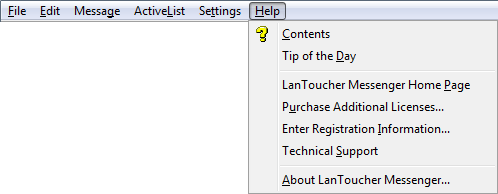
| Contents Calls this online help. |
| Tip of the Day Shows the "Tip of the Day" dialog. |
| Online Registration Opens the Online ordering form for LanToucher Messenger (requires an Internet connection). |
| LanToucher Messenger Home Page Opens the LanToucher Messenger home page (requires an Internet connection). |
| Enter Registration Information Opens the Product Registration dialog where you can enter your license details. |
| Technical Support Starts the default e-mail client, and then creates a new e-mail message to Vital Sound Laboratory support. |
| About LanToucher Messenger Opens the About LanToucher Messenger dialog. |
| Main toolbar |
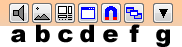
| A. | Enable/disable sound notifications Enables or disables application-wide sound notifications on events. |
| B. | Enable/disable pictures Enables or disables Image panel above ActiveList. |
| C. | Right-side/Left-side interface layout Switches between the left-side and the right-side user interface layouts. |
| D. | Enable/disable translucency Enables or disables the translucency effect for the Main window. This effect is unavailable under legacy operating systems such as Windows 95, 98, ME, or NT4. |
| E. | Enable/disable AutoSnap Enables or disables the AutoSnap feature. When enabled, AutoSnap lets you "stick" the Main window to the edges of Desktop. |
| F. | Enable/disable Always On Top Enables or disables the Always On Top mode. When this is on, LanToucher Messenger Main window will float over all other windows. |
| G. | Quick options Provides quick access to the Quick Options menu. |
| Message Options toolbar |

| A. | Enable/Disable AutoScroll Enables or disables AutoScroll. When AutoScroll is enabled, LanToucher Messenger will always show you the last (sent or received) message when it is added to the message base. As a result, the current message number will reset. Disable AutoScroll, if you wish to scroll the messages manually. |
| B. | Enable/Disable timestamps in message headers Enables or disables timestamps in message headers. When this is enabled, all messages will have the time and date of sending/arrival at the beginning. |
| C. | Enable/Disable message separators (Message History view) Enables or disables message separators between adjacent messages. Enable this option for better readability of messages in the Message History view. |
| Message toolbar |
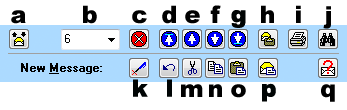
| A. (F2) | Toggle Message History/Message Box view Switches between the Message History and the Message Box views. |
| B. | Current message number (Message Scroller) Displays message by its number. You can use your mouse wheel, keyboard, or the dropdown menu. |
| C. (CTRL+D) | Delete current message Permanently deletes the current message from Message History and Message Box. |
| D. (SHIFT+ALT+UP/SHIFT+ALT+LEFT) | First message Displays first message. |
| E. (ALT+UP/ALT+LEFT) | Previous message Displays previous message. |
| F. (ALT+DOWN/ALT+RIGHT) | Next message Displays next message. |
| G. (SHIFT+ALT+DOWN/SHIFT+ALT+RIGHT) | Last message Displays last (most recent) message. |
| H. (CTRL+ALT+C) | Copy current message/selection to clipboard Copies the current message or selected text to Windows Clipboard. |
| I. (CTRL+P) | Print current message/selection Sends the selected text or message to the Print queue of the selected printer. |
| J. (CTRL+F) | Search for a specific word or phrase Opens the Search dialog. |
| K. (CTRL+N) | New message/Delete selection Clears the New Message field. If there is selected text, it just deletes the selection. |
| L. (CTRL+Z) | Undo Windows standard Undo function |
| M. (CTRL+X) | Cut Windows standard Cut function |
| N. (CTRL+C) | Copy Windows standard Copy function |
| O. (CTRL+V) | Paste Windows standard Paste function |
| P. (CTRL+ALT+V) | Paste current message/selection into New Message Pastes the current message or selected text into the New Message field at the current cursor position. |
| Q. (CTRL+\) | View/resend/discard undelivered messages Opens the Undelivered Messages dialog. |
| ActiveList toolbar |
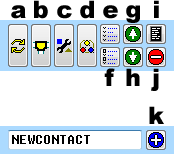
| A. (CTRL+F5) | Refresh ActiveList/Network Refreshes the presence status of your ActiveList contacts. |
| B. (F3) | Find/Add Contacts Opens the Contact Browser dialog. |
| C. (CTRL+M) | Customize Contact/Group Opens the Settings dialog for the selected contact(s)/group(s). |
| D. (CTRL+G) | Manage Groups Open the Groups dialog. |
| E. (ALT+A) | Select All/Select None Selects all ActiveList items if none or some items have been selected. Clears selection if all ActiveList items have been selected. |
| F. (ALT+X) | Invert Selection Selects all unselected items in ActiveList and vice versa. |
| G. (SHIFT+CTRL+ALT+UP) | Move Up Permanently moves the selected items one position up the list. |
| H. (SHIFT+CTRL+ALT+DOWN) | Move Down Permanently moves the selected items one position down the list. |
| I. (CTRL+B) | Manage BlockList Opens the BlockList dialog. |
| J. (ALT+DEL) | Remove Contact/Group Permanently removes the selected item(s) from ActiveList. |
| K. (ALT+INS) | Add Contact/Group/IP Adds the contact/group you specified in the ActiveList Address Box to ActiveList. A group name must have the plus sign at the beginning (for example, +SALES). You can use IP addresses as well. LanToucher Messenger will automatically search those IP addresses for available messaging aliases, if any. |
| Context menus |
This context menu pops up when you click the Quick Options button on the Main toolbar.
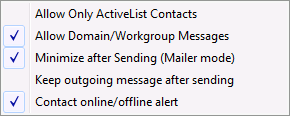
| Allow Only ActiveList Contacts If this option is enabled, you will not be able to send messages to contacts who are not on your ActiveList. All incoming messages from such contacts are ignored. |
| Allow Domain/Workgroup Messages Enables or disables Private mode. While in Private mode, LanToucher ignores any incoming domain/workgroup messages, and allows you to send only private messages to others. |
| Minimize after Sending (Mailer mode/Conference mode) When enabled, this option forces LanToucher Messenger to minimize to the Windows taskbar or the taskbar notification area after you sent a message. Note that this option is mode-specific (Mailer and Conference modes only). |
| Keep outgoing message after sending This option specifies whether your just sent message is remaining in the edit box or it is deleted automatically. |
| Contact online/offline alert When enabled, LanToucher Messenger will notify you each time someone on you contact list connects or disconnects. |
This context menu is available when you click the LanToucher Messenger icon in the taskbar notification area (system tray) with the right mouse button.
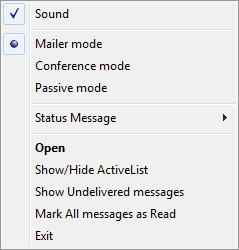
| Sound Enables or disables application-wide sound notifications on events. |
| Mailer mode Switches LanToucher Messenger to Mailer mode. |
| Conference mode Switches LanToucher Messenger to Conference mode. |
| Passive mode Switches LanToucher Messenger to Passive mode. |
| Status Message Switches LanToucher Messenger to Passive mode, enables AutoRespond, and sets the selected status message. |
| Open Restores the LanToucher Messenger Main window and brings it to the foreground. |
| Hide (Minimize) When the Main window is in foreground, the Hide (Minimize) command lets you minimize LanToucher Messenger to the Windows taskbar or the taskbar notification area. |
| Show/Hide ActiveList Shows or Hides Mini-ActiveList when the LanToucher Messenger Main window is in the minimized state. |
| Show Undelivered messages Opens the Undelivered Messages dialog. |
| Mark All Messages as Read Sets the count of all unread messages to zero. |
| Exit Exits the LanToucher Messenger application. |
This context menu is available in the ActiveList control.
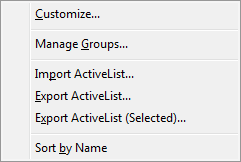
| (CTRL+M) | Customize Opens the Settings dialog for the selected contact(s)/group(s). |
| (CTRL+G) | Manage Groups Opens the Groups dialog. |
| (SHIFT+F3) | Import ActiveList Imports (adds) contacts/groups to ActiveList from a text file. |
| Export ActiveList Exports (saves) ActiveList contacts/groups to a text file. Note that group elements (members) are not saved. | |
| Export ActiveList (Selected) Exports (saves) currently selected ActiveList contacts/groups to a text file. Note that group elements (members) are not saved. | |
| Sort by Name Sorts the items of ActiveList alphabetically. |
This context menu is available in Message History and Message Box.
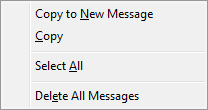
| (CTRL+ALT+V) | Copy to New Message Copies and then Pastes the current message or selected text into the New Message field at the current cursor position. |
| (CTRL+C) | Copy Windows standard Copy function |
| (CTRL+A) | Select All Windows standard Select All function |
| Delete All Messages Deletes all messages in Message History and Message Box. |
This context menu is available in the New Message field.
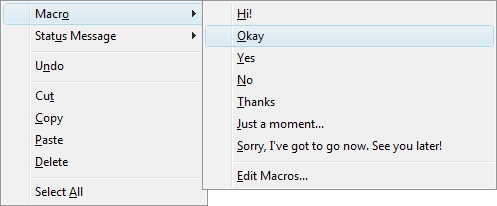
| Macro Inserts the selected Macro into the New Message field at the current cursor position. | |
| Status Message Switches LanToucher Messenger to Passive mode, enables AutoRespond, and sets the selected status message. | |
| (CTRL+Z) | Undo Windows standard Undo function |
| (CTRL+X) | Cut Windows standard Cut function |
| (CTRL+C) | Copy Windows standard Copy function |
| (CTRL+V) | Paste Windows standard Paste function |
| Delete Windows standard Delete function | |
| (CTRL+A) | Select All Windows standard Select All function |
This context menu is available in the edit box in the AutoRespond field in Passive mode.
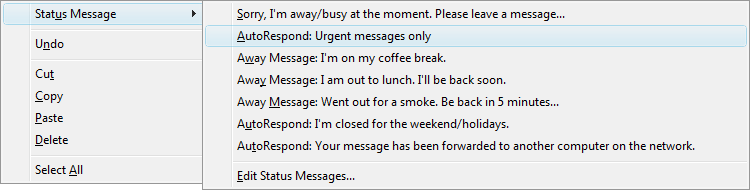
| Status Message Enables AutoRespond and sets the selected status message. | |
| (CTRL+Z) | Undo Windows standard Undo function |
| (CTRL+X) | Cut Windows standard Cut function |
| (CTRL+C) | Copy Windows standard Copy function |
| (CTRL+V) | Paste Windows standard Paste function |
| Delete Windows standard Delete function | |
| (CTRL+A) | Select All Windows standard Select All function |