| CONTACT/GROUP SETTINGS DIALOG |
In this dialog you can customize the selected contact(s) or group(s).
| Contact/Group Settings: Appearance |
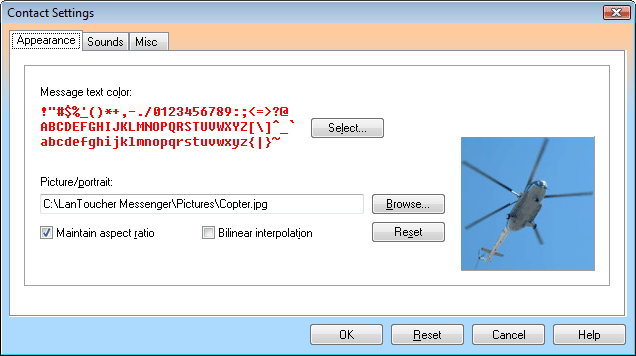
On this tab, you can select a text color for the contact and/or assign a picture to the contact/group.
Message text color/Group color
Click the Select button to pick a text color for incoming messages from the contact. This setting also allows you to colorize your ActiveList groups.
Picture/portrait
Here you can assign a picture to the contact/group. When the contact/group is selected in the ActiveList control, its picture is displayed in Image panel just above ActiveList. You can find some sample pictures in the "C:\Program Files\Vital Sound Laboratory\LanToucher Messenger\Pictures" folder.
Maintain aspect ratio
Check this to constrain proportions of the image. Clear this check box to have the image stretched to the frame.
Bilinear interpolation
Check this to display the image using interpolation of adjacent pixels. Bilinear interpolation may slightly improve visual quality, especially with low-resolution images.
| Contact Settings: Sounds |
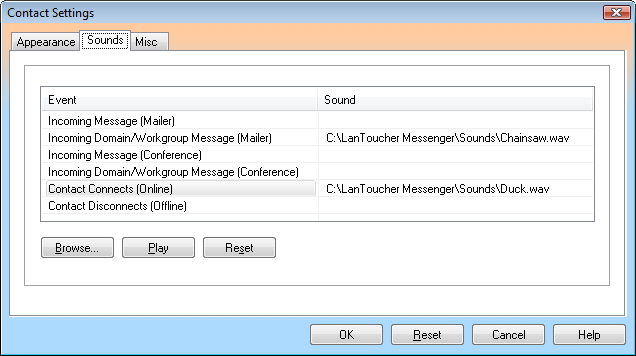
On this tab, you can assign custom sounds to various events for the contact(s). You can override either all of the sounds used by default, or just some of them.
| Contact Settings: Misc |
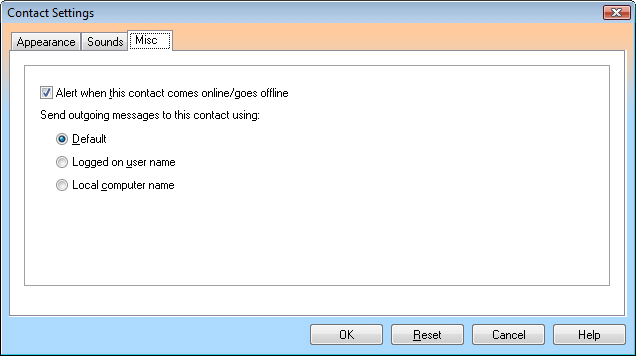
This tab allows you to customize miscellaneous settings for the contact(s).
Alert when this contact comes online/goes offline
When this is on, LanToucher Messenger will notify you each time this contact connects or disconnects. You can customize the sounds for this type of notification under the Sounds tab.
Send outgoing messages to this contact using [ Default | Logged on user name | Local computer name ]
This option lets you specify the sender of outgoing messages for the contact(s).
When the current selection is Logged on user name, then the contact you are sending to will receive your message with your logged on user name (e.g. Mike Davis) in the "From" field.
If you select the Local computer name radio button, then the contact you are sending to will receive your message with local machine name (e.g. Accounting2) in the "From" field.
When the Default radio button is selected, the "From" field of outgoing messages to the contact will always depend on the appropriate option on the Misc tab of the Options dialog.