| OPTIONS DIALOG |
The Options dialog lets you customize LanToucher Messenger. The following options are available:
| Options: Interface |
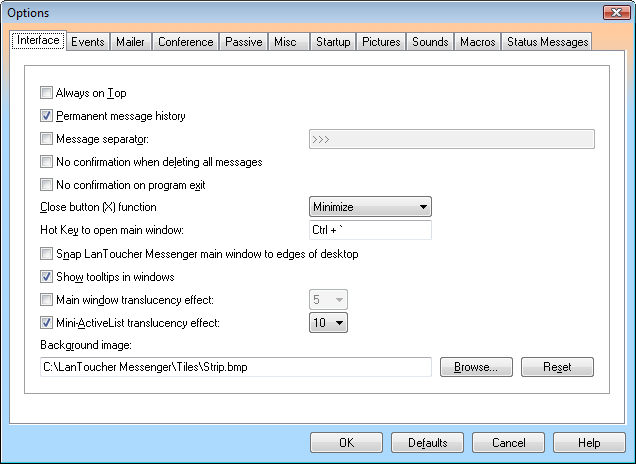
Always on Top
This option specifies whether other windows can cover up the main window of LanToucher Messenger.
Permanent message history
By default, LanToucher Messenger deletes its message history on exit. This option specifies whether LanToucher Messenger should save the message history before exit and reload it at startup next time.
Message separator
If this option is enabled, LanToucher Messenger uses the specified symbol or text as a separator between adjacent messages.
No confirmation when deleting all messages
Check this to disable the confirmation when you are about to delete all the messages.
No confirmation on program exit
Turn this on to disable the confirmation on LanToucher Messenger shutdown.
Close button (X) function [ Minimize | Close | Disabled ]
This option lets you override the close button (X) function. Select Minimize to minimize LanToucher Messenger each time when you click the (X) button. Select Close to exit LanToucher Messenger (default). Select Disabled to disable the (X) button.
Hot Key to open main window
Here you can change the default Hot Key for the main window.
Snap LanToucher Messenger main window to edges of desktop
If enabled, this option makes the LanToucher Messenger main window snap to the nearest edge of your desktop when you move it.
Show tooltips in windows
Enable this to turn on the tooltips (hints) for the controls (i.e. buttons, check boxes etc.). Each tooltip displays a brief description for a control.
Main window translucency effect
By adjusting this value, you can change the translucency amount for the main window.
Mini-ActiveList translucency effect
By adjusting this value, you can change the translucency amount for the Mini-ActiveList.
Background image
Select a picture to be used as a tiled background in LanToucher Messenger windows. You can find some sample tiles in the "C:\Program Files\Vital Sound Laboratory\LanToucher Messenger\Tiles" folder on your hard drive.
| Options: Events |
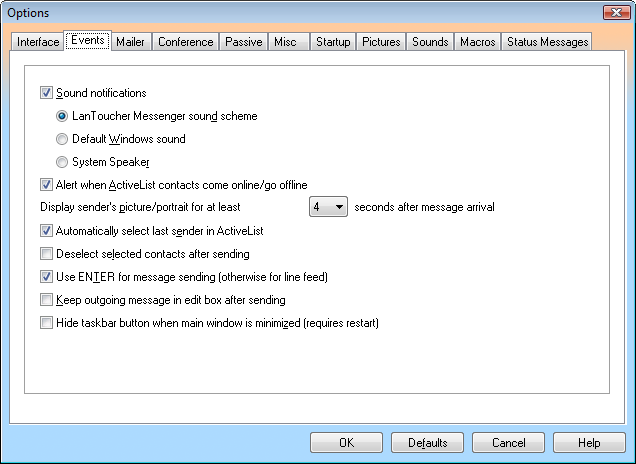
Sound notifications [ LanToucher Messenger sound scheme | Default Windows sound | System Speaker ]
This option specifies whether a notification sound is played when an incoming message arrives.
The built-in LanToucher Messenger sound scheme is the most suitable choice for sound notification. When this option is on, the original sound effects will be played via desktop stereo speakers or headphones connected to a DirectSound-compatible audio device (sound card). This option will also let you assign custom sounds to the global application events and even to individual contact's events. Note that the audio device must be properly installed and configured.
When the "Use default Windows sound" option is on, then the default Windows sound is played. The default Windows sound is a short "beep" sound effect which is played either via desktop stereo speakers or headphones connected to a DirectSound-compatible audio device (sound card) or via the System Speaker built-in you computer's case.
If you select the "Use System Speaker" radio button, then the System Speaker will be used for original sound effects playback.
Alert when ActiveList contacts come online/go offline
When this is on, LanToucher Messenger will notify you each time someone on you contact list connects or disconnects. You can customize the sounds for this type of notification under the Sounds tab. To assign custom sounds to specific contacts, use the "Customize" command from the ActiveList context menu.
Display sender's picture/portrait for at least (x) seconds after message arrival
Specify a time interval within which the picture of an incoming message can overlap the picture of currently selected item(s) in ActiveList.
Automatically select last sender in ActiveList
When this is on, LanToucher Messenger automatically changes the selection of ActiveList to the address of a user or computer that sent you a private message. This option has no effect on domain/workgroup messages. Note that while the user is composing an outgoing message or multiple computers have been selected, this function is blocked.
Deselect selected contacts after sending
When this is on, then each time after sending a message, the ActiveList selection is cleared.
Use ENTER for message sending (otherwise for line feed)
Normally, if you press ENTER when you are typing your message, you will begin typing from a new line. When this option is enabled, the message will be immediately sent upon pressing ENTER. Note that when this option is on, you should use the CTRL+ENTER combination in order to jump to the next line if you are composing your message.
Keep outgoing message in edit box after sending
This option specifies whether your just sent message is remaining in the edit box or it is deleted automatically.
Hide taskbar button when main window is minimized (requires restart)
Check this box to have LanToucher remove its button from the Windows taskbar when the main window is minimized to the taskbar notification area (system tray).
| Options: Mailer |
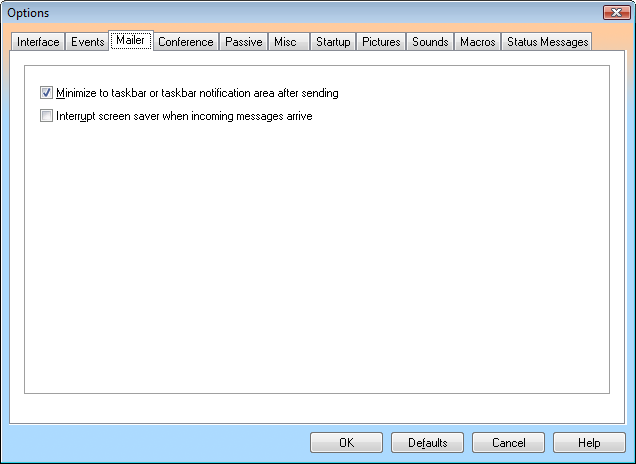
Minimize to taskbar or taskbar notification area after sending
This option, if used, forces LanToucher Messenger to automatically minimize the main window to the Windows taskbar or the taskbar notification area after you sent a message.
Interrupt screen saver when incoming messages arrive
When LanToucher Messenger is in Mailer mode and a new message arrives, LanToucher Messenger will attempt to stop the screen saver and display the new message. For this option to work correctly, the screen saver must NOT be password protected. If it is password protected, then the "Enter Password" dialog will appear and LanToucher Messenger will wait for you to enter your password, and then display the message once the password has been entered. Note that if your operating system is Windows XP/Windows Server 2003 or above, and the "On resume, display Welcome screen"/"On resume, password protect" option of the screen saver is on, this option has no effect.
| Options: Conference |
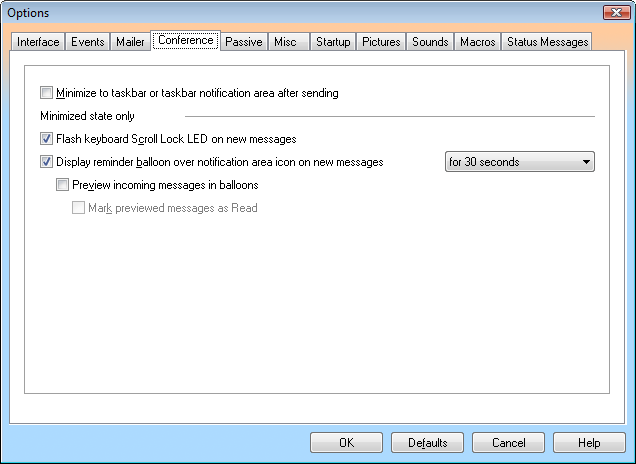
Minimize to taskbar or taskbar notification area after sending
This option, if used, forces LanToucher Messenger to automatically minimize the main window to the Windows taskbar or the taskbar notification area after you sent a message.
Flash keyboard Scroll Lock LED on new messages
When this is enabled, the Scroll Lock LED on your keyboard will blink when there are unread messages. This option may cause user input interrupts due to some OS limitations.
Display reminder balloon over notification area icon on new messages [ for 10/15/20/30/45/60 seconds | every 1/2/3/5/10/15 minutes | permanently ]
Check this box to allow reminder balloons to appear over the taskbar notification area icon. Reminder balloons will appear only when the main window is minimized and there are unread messages. Select the minimal time period during which the balloon would be shown. When there is no user activity for a long time, the balloon will be displayed longer then specified.
Preview incoming messages in balloons
Enable this to let the message type, sender, and body text be immediately displayed in the reminder balloon on new messages instead of just showing a new mail notification. To view the entire message text and/or reply to it, click the balloon and the main window will appear. To mark previewed messages as Read without having to open the main window, please click on the notification area icon with the right mouse button and select the corresponding menu item.
Mark previewed messages as Read
When this is on, all previewed messages are automatically marked as Read. Use this option with care as other notification types such as Flashing the notification area icon and Scroll Lock LED will not function.
| Options: Passive |
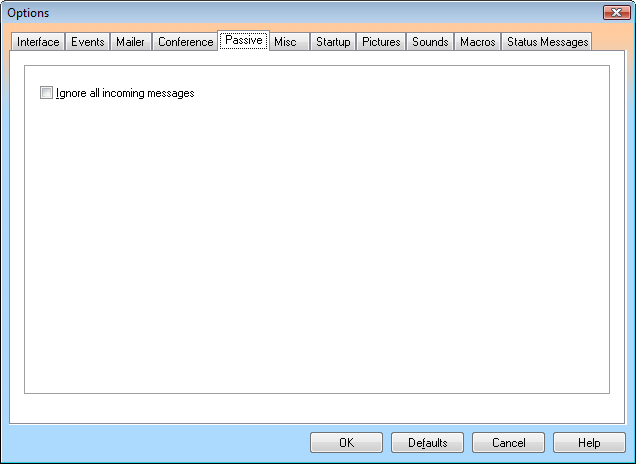
Ignore all incoming messages
Use this option to make Passive mode deaf, dumb and blind. No message logging, no activity. This insures your privacy.
| Options: Misc |
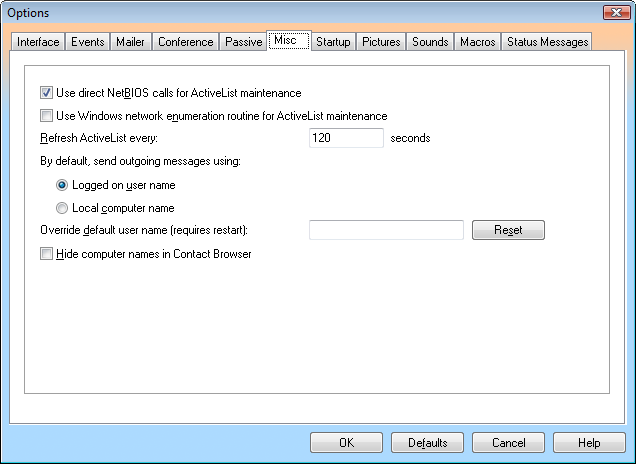
Use direct NetBIOS calls for ActiveList maintenance
When this is on, then LanToucher Messenger retrieves available users and computers using direct NetBIOS calls.
Use Windows network enumeration routine for ActiveList maintenance
When this is on, then LanToucher Messenger retrieves available computers using Windows network enumeration procedure.
Refresh ActiveList every (x) seconds
Provides a space for you to specify (in seconds) how often LanToucher Messenger should refresh the status of your ActiveList contacts. The default interval is 120 seconds (two minutes). The minimum accepted value is 20.
By default, send outgoing messages using [ Logged on user name | Local computer name ]
This option lets you specify the default sender of outgoing messages.
When the "Logged on user name" radio button is selected, then the user you are sending to will receive your message with your logged on user name (e.g. John Doe) in the "From" field.
If you select the "Local computer name" radio button, then the user you are sending to will receive your message with local machine name (e.g. Krypton) in the "From" field.
Override default user name (requires restart)
Allows you to override the default user name with a custom name. A messaging name can contain all alphanumeric characters except for the extended characters that are listed below. Names can contain a period, but names cannot start with a period.
`~!@#$^&*()+=[]{}\/:;,'"?<>|
Hide computer names in Contact Browser
Tick this box to exclude computer names from the list of online contacts in the Contact Browser dialog. Only user names will be shown, when this option is on.
| Options: Startup |
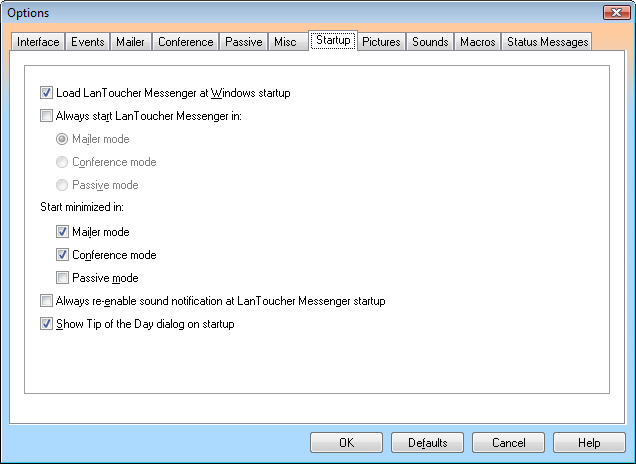
Load LanToucher Messenger at Windows startup
If this is on, LanToucher Messenger will start automatically each time Windows starts.
Always start LanToucher Messenger in [ Mailer mode | Conference mode | Passive mode ]
Normally, LanToucher Messenger starts in the last used mode. This option lets the user select the mode manually. I.e. if you set this option to "Always start in Conference mode", then LanToucher Messenger will always start in Conference mode etc.
Start minimized in [ Mailer mode | Conference mode | Passive mode ]
Select the modes in which LanToucher Messenger should start minimized.
Always re-enable sound notifications at LanToucher Messenger startup
If this is checked, LanToucher Messenger will automatically re-enable its sound notifications at startup.
Show Tip of the Day dialog on startup
When this is on, the "Tip of the Day" dialog is displayed each time LanToucher Messenger starts.
| Options: Pictures |
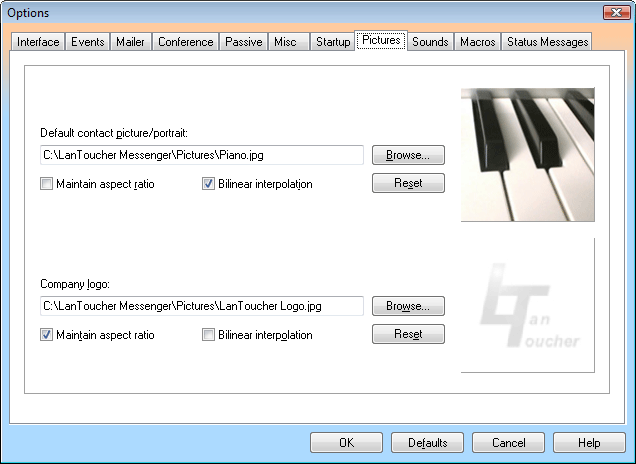
On this tab, you can customize the default contact picture and the company logo image.
Default contact picture/portrait
In this field, you can select a picture which should be displayed when a contact without picture is selected, or when items with different pictures are selected at once. You can find some sample pictures in the "C:\Program Files\Vital Sound Laboratory\LanToucher Messenger\Pictures" folder on your hard drive.
Company logo
In this field, you can select a company logo image. This image is always displayed when there is no selection in ActiveList. You can find some sample pictures in the "C:\Program Files\Vital Sound Laboratory\LanToucher Messenger\Pictures" folder on your hard drive.
Maintain aspect ratio
Check this to constrain proportions of the image. Clear this check box to have the image stretched to the frame edges.
Bilinear interpolation
Check this to display the image using interpolation of adjacent pixels. Bilinear interpolation may slightly improve visual quality especially with low-resolution images.
| Options: Sounds |
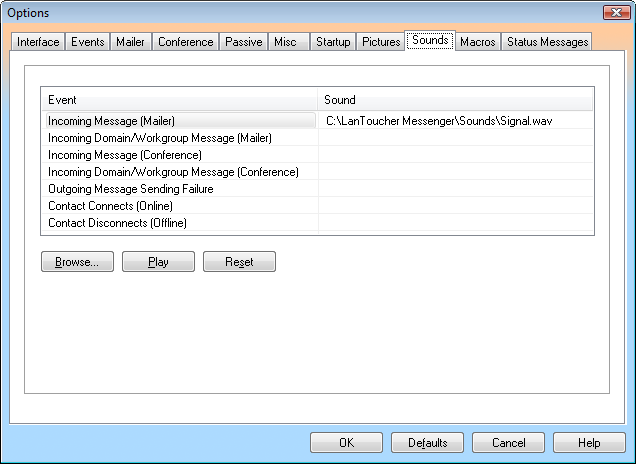
On this tab, you can customize sound notifications (i.e. the built-in LanToucher Messenger sound scheme). You can override either all of the sounds used by default or just some of them.
| Options: Macros |
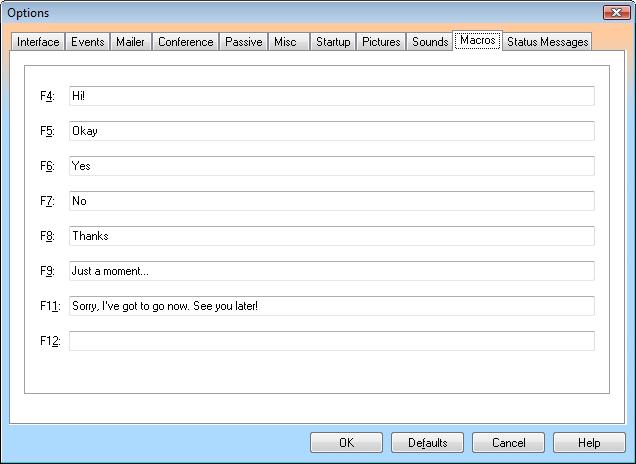
On this tab, you can define custom messages (macros). You can use F4--F12 (except F10) function keys for the macros. To paste a predefined macro into your outgoing message, use the associated function key. You can use the context menu as well.
| Options: Status Messages |
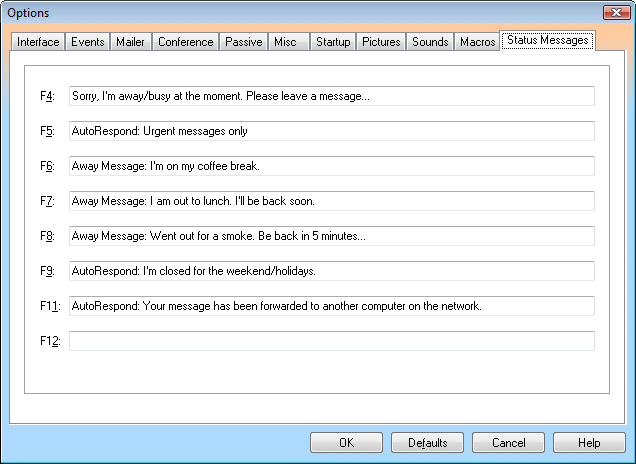
On this tab, you can define custom status/away messages for Passive mode. To replace your current status message while you are in Passive mode, you can use F4--F12 (except F10) function keys or the context menu.