| MAIN WINDOW |
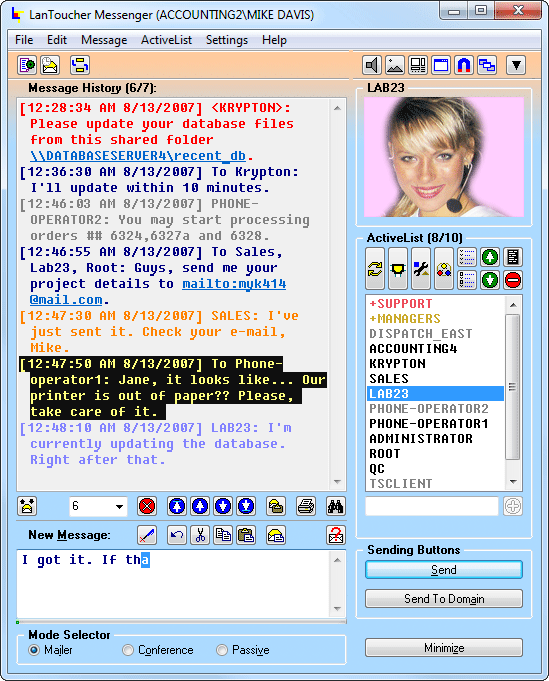
The main window is your main work area in LanToucher Messenger. From the main window of LanToucher Messenger, you can manage your messages and contacts, set up custom messages and forwarding, print one or more messages, change the state mode you are running in, and much more.
| Message History and Message Box fields |
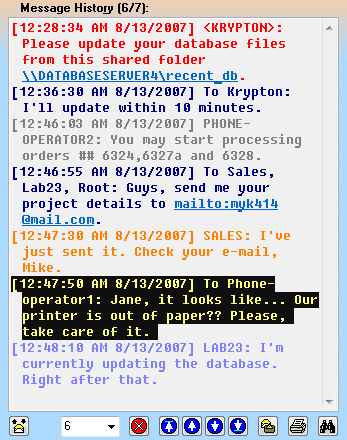
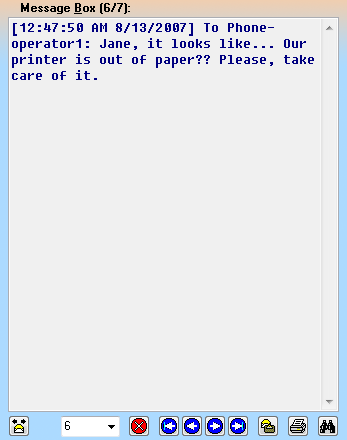
The Message History field and the Message Box field display all sent and received messages.
| |
The Message History field displays all sent and received messages. Newer messages are placed in the bottom of the message history box while the old ones go up.
The Message Box field displays only one-message-per-screen.
Each view has independent navigation and message counters. You can find these counters at the top of both fields.
You can use the Message menu, the Message toolbar or Hot keys to navigate through the messages and make other operations.
With this 'dual view' design you are able to view a certain message in the Message Box view and work with another message in the Message History view.
To switch between these views, you can use the F2 key, the Toggle Message History/Message Box view button on the Message toolbar, or the Switch View command in the Message menu.
If a message contains an URL (preceded with http://, ftp://, mailto: etc.), or UNC name (i.e. \\SOMESERVER\someshare), it will work as a clickable hyperlink, so that you can click the link to go to that URL or UNC. In order to copy a URL or UNC link from the message you are currently viewing to the Windows clipboard, just hold down the CTRL key while clicking the link. To paste a URL or UNC link from the message you are currently viewing to the New Message field, just hold down the ALT key while clicking the link.
By default, LanToucher Messenger stores all the messages permanently, like an e-mail client. However, you may want to disable the Permanent message history option, so that LanToucher Messenger would delete the messages each time you close it or restart your computer.
| New Message field |
The New Message field is the place where you compose your outgoing messages.
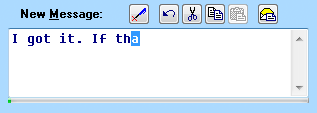
This field is available in Mailer and Conference modes.
Use the Send button to send private messages. Use the Send To Domain button to send domain/workgroup messages.
The maximum size of a private message is limited to 1600 characters, while domain/workgroup messages cannot exceed 128 characters.
You can Drag & Drop shared network files and folders from Windows Explorer onto this field. Only the corresponding UNC link (e.g. \\MYCOMPUTER\sharedfolder\document.txt) is sent, not the actual file or folder.
| Sending Buttons |
The Sending Buttons are intended to send your messages to recipients.
The Send button sends your private messages to the users or computers you specify or select from within your ActiveList.
The Send To Domain button broadcasts your messages to the whole domain/workgroup you are currently on. Each user of the domain/workgroup will receive the message.
| ActiveList control |
The ActiveList control allows you to build a custom list of contacts (users, computers) and groups.
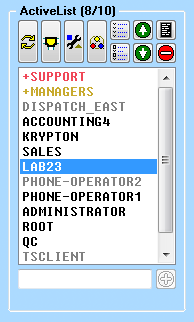
You can see the presence status of your contacts by their colors: available (online) contacts are black, while unavailable (offline) ones are grayed out. In order to see if someone is online or not while LanToucher Messenger is in the minimized state, you may want to use Mini-ActiveList. To show/hide it, just click the LanToucher Messenger tray icon with the middle (wheel) mouse button, or use the CTRL+ALT+SHIFT+F10 global shortcut. You can use the appropriate menu item of the LanToucher Messenger tray icon as well.
ActiveList supports sending to multiple contacts simultaneously (i.e. the message is delivered to each user/computer you have selected). You can send the same message to tens of recipients at once! The maximum number of simultaneous recipients is 250.
To select multiple recipients for your message, just hold down the CTRL key and click on a particular recipient to select/deselect it, and then click the Send button to initiate the sending process. When you send a message to a single recipient, you can just double-click it instead of selecting it and then clicking the Send button.
You can define custom groups of contacts and send messages to the groups. To manage groups, open the Groups dialog by pressing CTRL+G or by clicking the Manage Groups button on the ActiveList toolbar or by selecting Manage Groups in the ActiveList menu.
To send a message to a contact who is not on your ActiveList, you will have to type in the name manually and then click the Send button.
| Image panel |
The Image panel displays the picture/portrait associated with the currently selected contact or group.
LanToucher Messenger allows you to assign images (also known as avatars) to your contacts and groups in ActiveList. If a contact has an image assigned to it, the image will appear in the Image panel when you select that contact or group. This feature also allows you to easily identify the sender when you receive an instant message.
| Status Message field |
In this field you can specify a status message (AutoRespond).
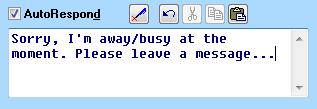
This field is available in Passive mode.
The specified status message will be automatically sent as a reply to all incoming private messages while AutoRespond is on.
Make use of AutoRespond when you are away from your computer, or if you are busy and unable to reply to incoming messages.
| Message Forwarding control |
Here you can enable or disable the automatic Message Forwarding feature.
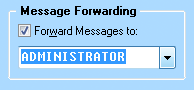
This field is available in Passive mode.
When Message Forwarding is on, all incoming personal messages are forwarded to the specified user or computer on the network (if one is available at that moment). You can either select the target user or computer from the drop-down menu or specify the name manually. To activate or deactivate Message Forwarding, use the Forward Messages to check box.
| Mode Selector |
Using the Mode Selector, you can switch between the state modes in order to change the current LanToucher Messenger behavior.

| Minimize button |
The Minimize button is intended to minimize LanToucher Messenger to the Windows taskbar or the taskbar notification area (system tray) when needed.