| GROUPS DIALOG |
This dialog lets you create and manage custom groups of your contacts.
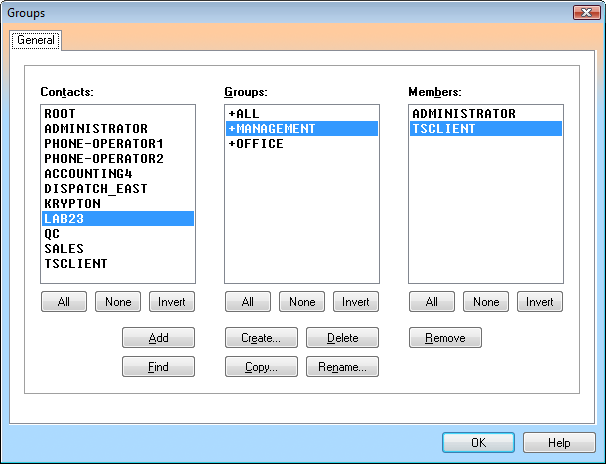
To create a new group, click Create. Then double-click the contact in the Contacts list box to add it to the group.
| List Boxes |
| Contacts Displays your ActiveList contacts. |
| Groups Displays preset groups of contacts. |
| Members Displays the members of the selected groups. If all of the selected groups contain a particular member, that member color is black. If only some of the groups contain a particular member, that member color is gray. |
| Push buttons |
| All Selects all items in the list box. |
| None Deselects all items in the list box. |
| Invert Inverts the current selection of items. |
| Add Adds the selected contact(s) to the selected group(s). If no group has been selected, you will be prompted to enter a new group name. |
| Find Searches for groups that contain the selected contact(s). |
| Create Creates a new empty group. The maximum length of a group name is 14 characters. |
| Delete Deletes the selected group(s). |
| Copy Makes a copy of the selected group and its members. You will be prompted to enter a new group name. |
| Merge Merges two or more selected groups into a new one. You will be prompted to enter a new group name. The destination group will contain all the members from the source groups, the source groups will not be deleted. |
| Rename Renames the selected group. |
| Remove Removes the selected member(s) from the selected group(s). |