| UNDELIVERED MESSAGES DIALOG |
In this dialog you can see the messages that did not reach some or all of the intended recipients.
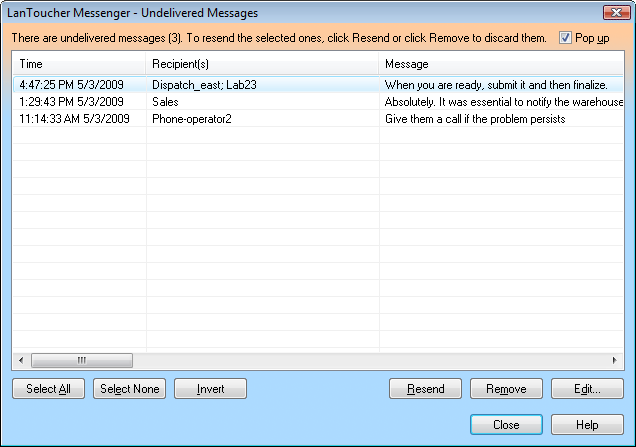
In order to resend all the messages, click Select All, and then click Resend.
To permanently delete one or more undelivered messages, use the Remove button.
You can add or remove recipients to/from a single failed message as well as edit the original text. To do this, click the Edit button. Then you can try to send the message again.
| Undelivered message list |
| Time Displays the time stamp that was recorded with the event. |
| Recipient(s) Displays the recipient(s) that failed to receive the message. |
| Message Displays the original message text. |
| Push buttons |
| Select All Selects all items in the list. |
| Select None Deselects all items in the list. |
| Invert Inverts the current selection of items. |
| Resend Resends the selected message(s) to the failed recipients. |
| Remove Removes the selected undelivered message(s) from the list. |
| Edit Lets you edit the original message text and/or change the intended recipients, and then resend the message. |
| Help Opens up this Online Help. |
| Pop up check box |
| Pop up If this box is checked, this Dialog will show automatically each time you have a new undelivered or partially delivered message. |